How to Remove Pages From a PDF Online
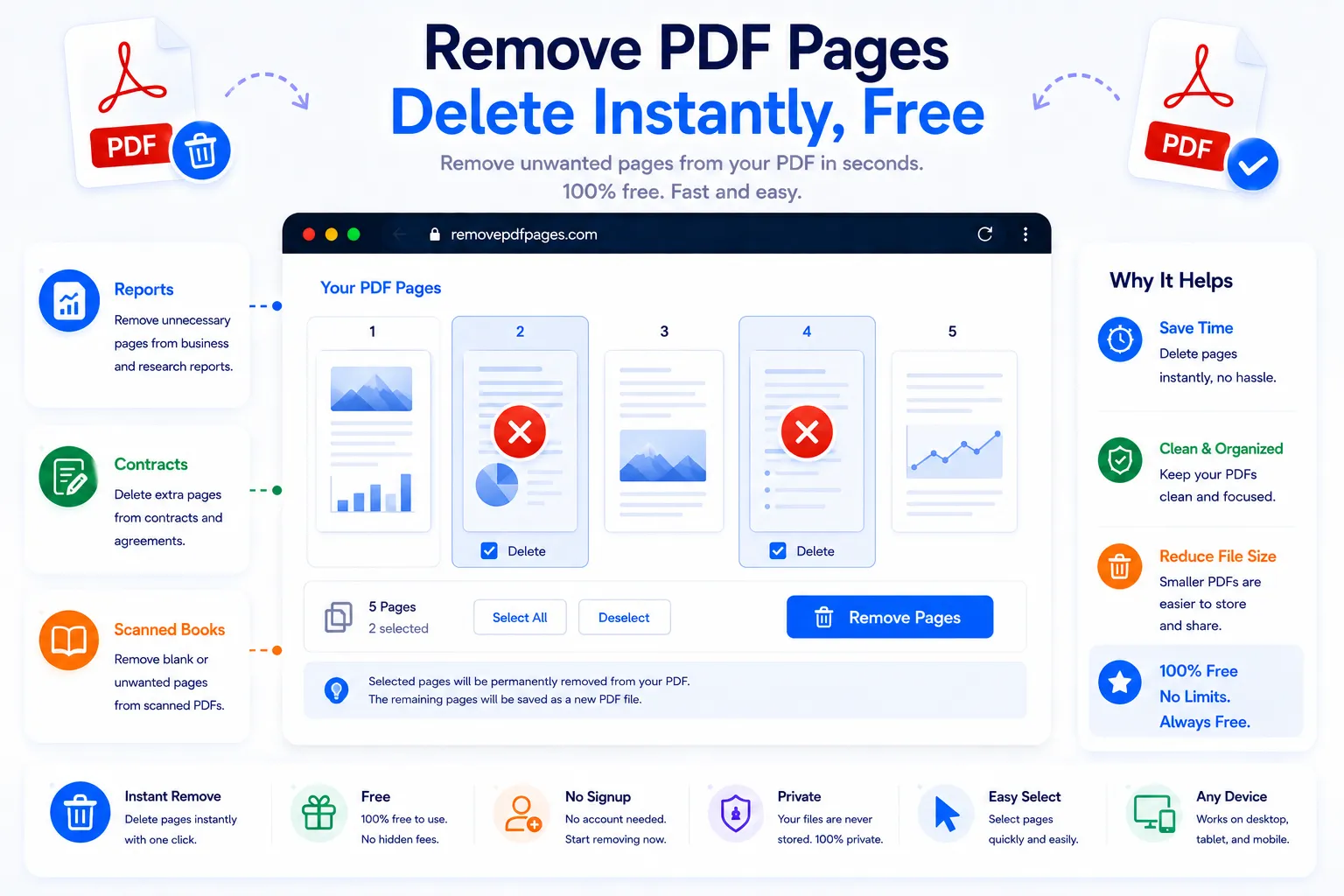
A scanned document with a stray blank page, a report with a section that no longer applies, a form with instructions you don't need to forward, these are common enough that reprinting or re-scanning the whole file feels like overkill. Removing the unwanted pages directly from the PDF is faster, and it leaves everything else in the document exactly as it was.
This guide covers when page removal is the right move, what to check before deleting, and how to do it for free using NexaTools.
When to Remove Pages Instead of Starting Over
Page removal makes sense whenever the document itself is fine but a specific page or two isn't needed, a blank page left over from scanning, a cover sheet that doesn't apply to the recipient, an outdated section in a longer report. It's a much lighter edit than regenerating the whole file, and because it only deletes pages rather than touching the content on the ones that remain, there's no risk of accidentally altering text or images elsewhere in the document.
Step-by-Step: Remove PDF Pages with NexaTools
- Open the NexaTools PDF Page Remover
- Upload the PDF you want to edit
- Select the pages you want to delete
- Download the updated PDF
Common Mistakes When Removing PDF Pages
- Miscounting page numbers in a long document, it's easy to select the wrong page by mistake, so double-check the preview before finalizing
- Removing pages from the wrong version editing an outdated copy of a file instead of the latest version can undo other changes that were already made
- Not keeping the original once pages are removed and the file is saved over the original, that content is gone, so keep a backup if there's any chance the pages are needed later
- Overlooking page references if the document has a table of contents or internal page references, removing pages can make those references point to the wrong place
Who Needs a PDF Page Remover
- Anyone cleaning up scanned documents with blank or duplicate pages
- Professionals trimming reports down to only the relevant sections
- Students removing cover sheets or instructions before submitting coursework
- Small business owners preparing client-facing documents from longer internal files
📄 Remove PDF Pages Free
No signup, no limits. Upload your PDF and delete pages instantly.
⚡ Open PDF Page Remover