How to Convert Images to PDF Online for Free
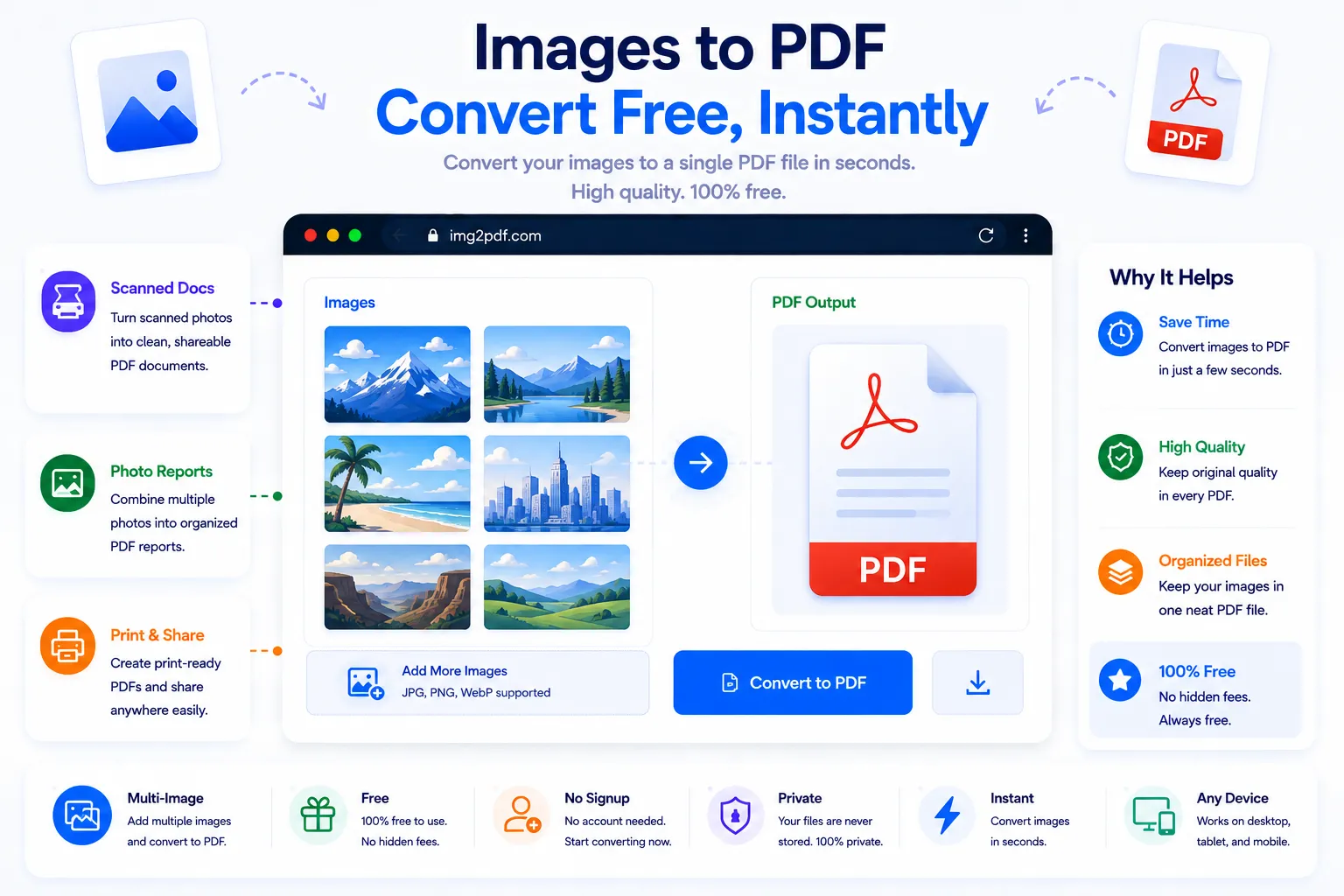
A photo of a signed contract, a stack of scanned receipts, a set of screenshots that need to go to someone as one tidy file, these situations all run into the same wall: images are awkward to send in bulk, and most forms and inboxes expect a document, not a folder of JPGs. Converting images to PDF solves that in one step, bundling everything into a single file that opens the same way everywhere.
This guide covers when PDF beats sending raw images, how page order and quality work, and how to convert for free using NexaTools.
Why PDF Instead of Sending Photos Directly
A PDF locks content into fixed pages with a predictable layout, so it opens identically whether the recipient is on a phone, a laptop, or a printer, unlike a batch of image files that can arrive out of order, get auto-rotated incorrectly, or be silently recompressed by a messaging app. For anything with more than one page, like a multi-page scanned document, PDF also keeps everything in a single file instead of forcing the recipient to open several images separately.
Step-by-Step: Convert Images to PDF with NexaTools
- Open the NexaTools Image to PDF Converter
- Upload one or more images, such as JPG or PNG files
- Arrange the page order if converting multiple images
- Download the combined PDF file
Common Mistakes When Converting Images to PDF
- Uploading photos in the wrong order for multi-page documents, double-check the page sequence before downloading, since fixing it afterward usually means starting over
- Ignoring sideways photos an image that displays sideways due to EXIF orientation can carry that same issue into the PDF if it isn't corrected first
- Using low-resolution screenshots a blurry source image produces a blurry PDF page, so start from the original photo rather than a compressed copy when possible
- Not checking file size limits some portals cap PDF upload size, so very high-resolution scans may need compressing after conversion
Who Needs an Image to PDF Converter
- Students and professionals submitting scanned or photographed paperwork
- Anyone sending signed contracts or forms captured with a phone camera
- Small business owners compiling receipts or invoices into one file
- People archiving photo sets as a single shareable document
📄 Convert Your Images Free
No signup, no limits. Upload your photos and get a PDF instantly.
⚡ Open Image to PDF Converter