How to Password Protect a PDF File for Free
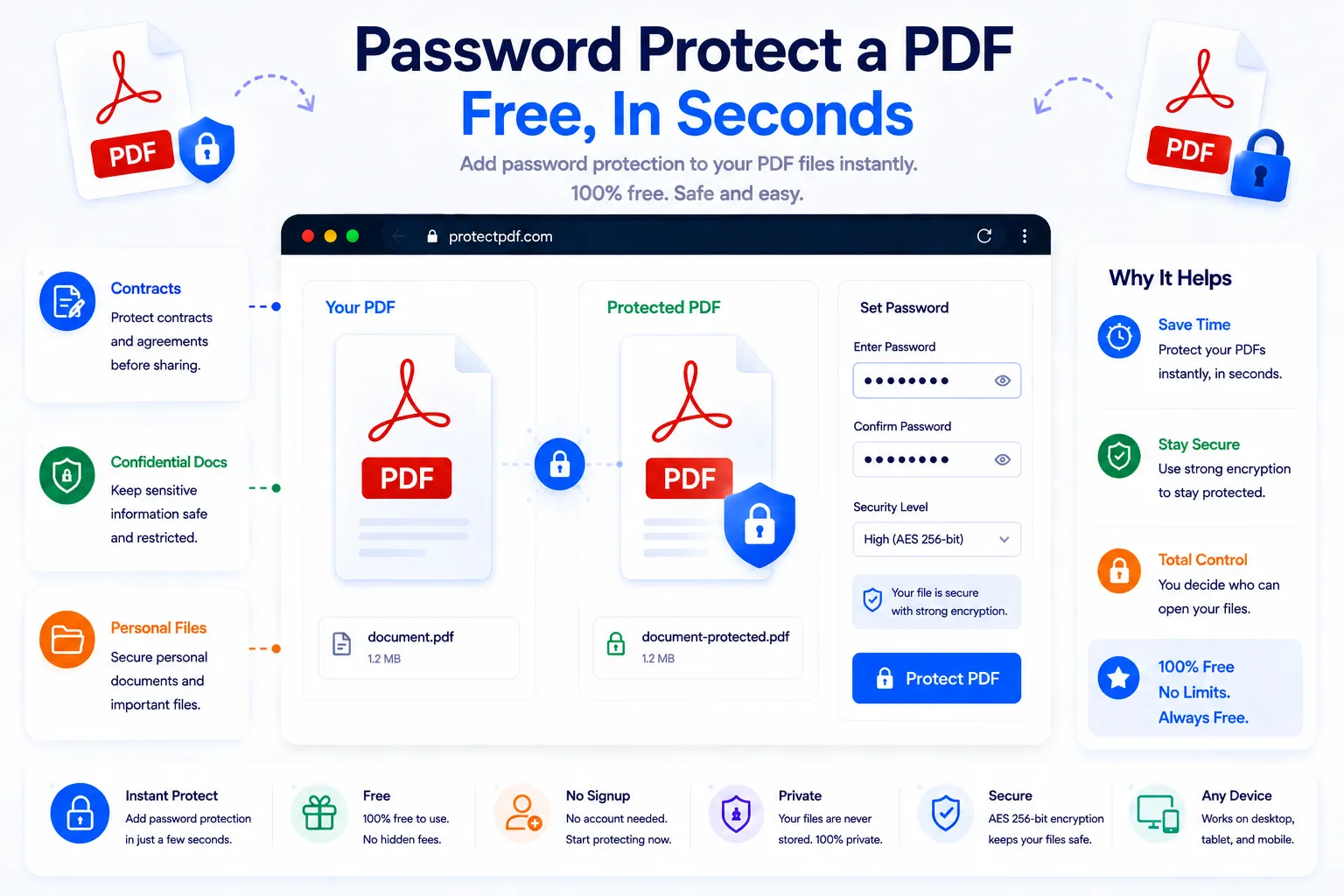
Some PDFs are meant for anyone to open, others really shouldn't be. A contract with financial terms, a scanned ID, an internal report headed to a client, these are the kind of files where an unprotected copy sitting in an inbox or a shared drive is one misdirected email away from being a problem. Adding a password closes that gap, without needing to install anything.
This guide covers what a PDF password actually protects, the two types of protection available, and how to add one for free using NexaTools.
What a PDF Password Actually Protects
A password doesn't change what's inside the PDF, it changes who can get to it and what they can do once they're in. Anyone without the password sees nothing but a locked file, and depending on how it's configured, even people who can open it may be blocked from printing, copying text, or editing the content. That makes password protection a useful first layer of security for anything sensitive that's going to be emailed, uploaded, or stored somewhere outside your direct control.
Step-by-Step: Password Protect a PDF with NexaTools
- Open the NexaTools PDF Password Protector
- Upload the PDF you want to secure
- Set the password you want to use
- Download the newly protected PDF
Common Mistakes When Protecting a PDF
- Reusing a password from another account a reused password ties the PDF's security to the weakest place that password is also used, so pick something unique
- Sending the password in the same message as the file sharing both together in one email or chat gives anyone who intercepts it everything they need
- Choosing a guessable password birthdays, names, and simple sequences are among the first things attempted in a brute-force attempt
- Forgetting the password entirely without it, even the file's owner may not be able to get back in, so keep a secure record of it somewhere reliable
Who Needs to Password Protect a PDF
- Professionals sending contracts, invoices, or reports with sensitive terms
- Anyone emailing scanned IDs, tax documents, or financial statements
- HR teams sharing offer letters or personnel documents internally
- Consultants and freelancers protecting client deliverables before delivery
🔒 Protect Your PDF Free
No signup, no limits. Upload your PDF and add a password instantly.
⚡ Open PDF Password Protector