How to Unlock a Password-Protected PDF Online
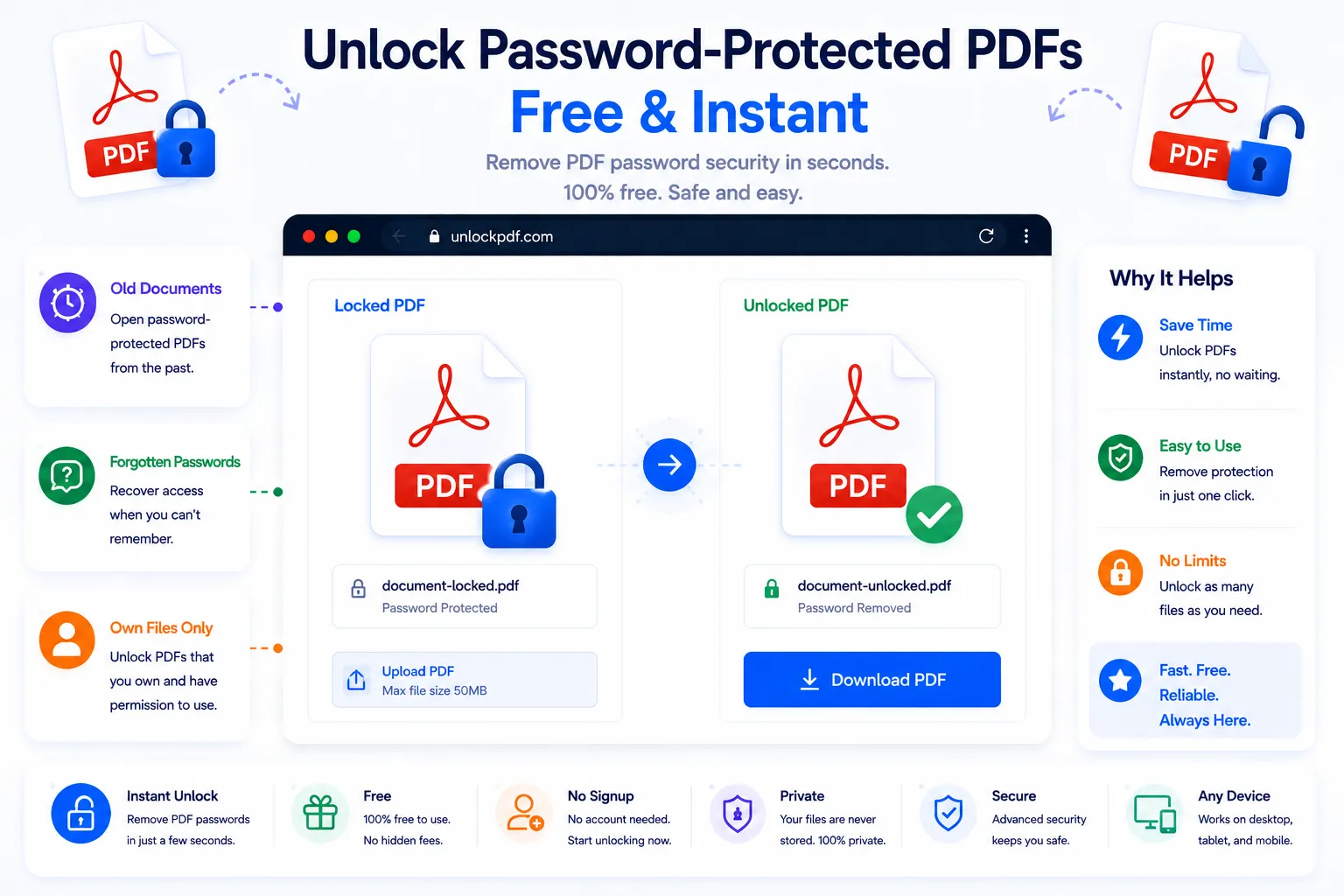
A password-protected PDF is useful right up until it becomes a hassle, typing the same password every time a document opens, or realizing a file needs to be shared with someone but re-entering the password isn't practical for them. If it's your file and you know the password, there's no reason to keep re-typing it. Unlocking the PDF removes that requirement permanently, leaving a normal file anyone can open.
This guide covers the two kinds of PDF password protection, when unlocking makes sense, and how to do it for free using NexaTools.
The Two Types of PDF Password Protection
PDF security generally comes in two forms that get lumped together as "password protected." An open password (also called a user password) is required just to view the file at all, nothing displays until it's entered. A permissions password (or owner password) lets the file open freely but restricts specific actions like printing, copying text, or editing, and is enforced separately from the open password. Removing either one requires already knowing the relevant password, since a legitimate unlock tool isn't built to guess or bypass a password you don't have.
Step-by-Step: Unlock a PDF with NexaTools
- Open the NexaTools PDF Unlocker
- Upload the password-protected PDF
- Enter the current password when prompted
- Download the unlocked copy of the file
Common Mistakes When Unlocking a PDF
- Assuming any tool can remove an unknown password a legitimate unlocker needs the correct password first, it can't recover a forgotten one out of thin air
- Unlocking a file you don't have rights to if the PDF belongs to someone else or was protected by an organization, the right step is asking them for access rather than trying to force it open
- Losing track of the unlocked copy once unlocked, the file has no password protection at all, so store it somewhere appropriate if it contains sensitive information
- Confusing open and permissions passwords entering the wrong type of password, or expecting one to remove restrictions tied to the other, can lead to confusion about why the file still behaves as before
Who Needs a PDF Unlocker
- Anyone who no longer wants to re-enter a password on their own document
- Professionals preparing a previously protected file for wider internal sharing
- Students removing a password from their own protected coursework or notes
- Small business owners simplifying access to internal reference documents
🔓 Unlock Your PDF Free
No signup, no limits. Upload your PDF and remove the password instantly.
⚡ Open PDF Unlocker