How to Add a Watermark to a PDF Document
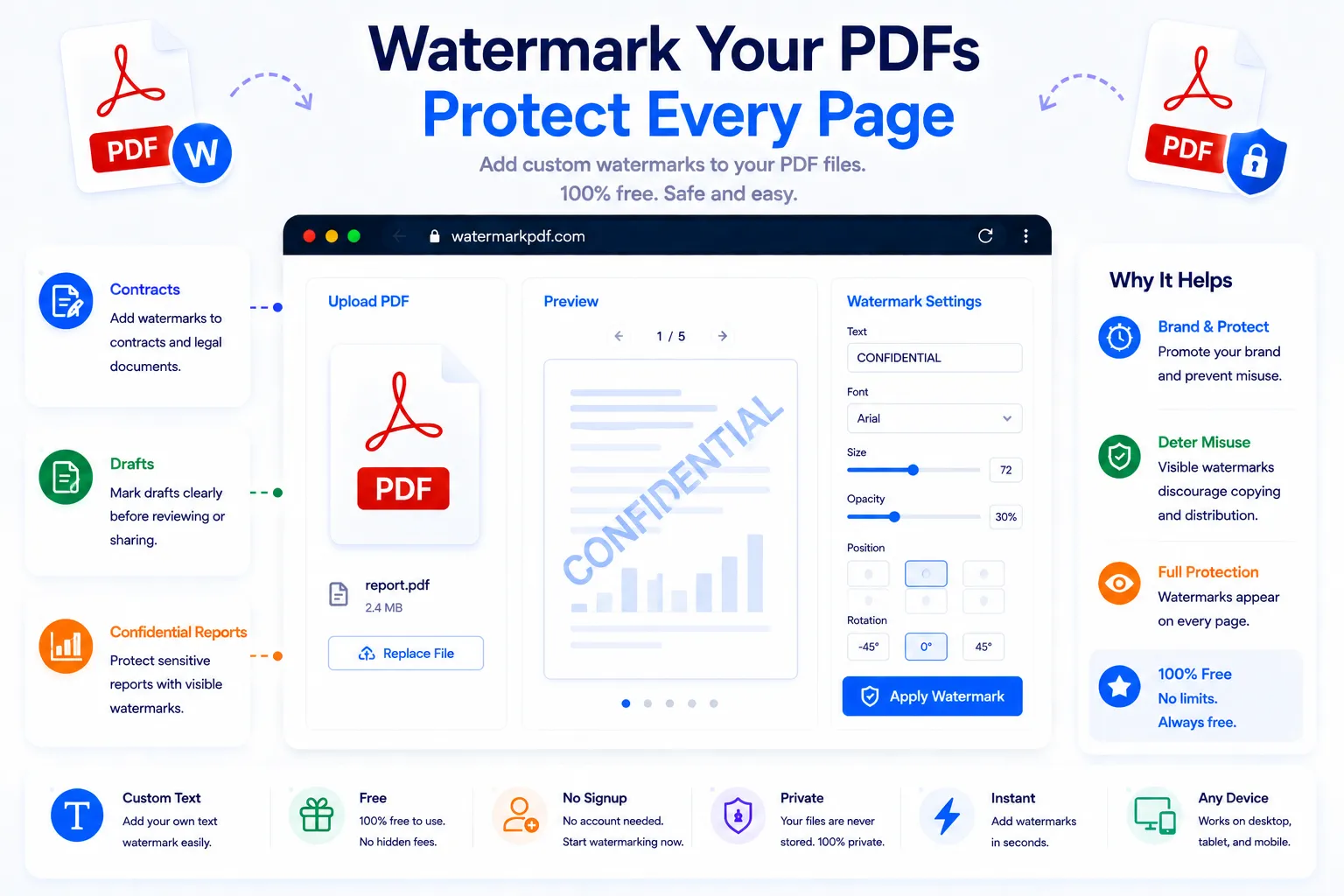
A watermark is one of the simplest ways to make a PDF unmistakably yours. Whether it's a "CONFIDENTIAL" stamp across a draft contract, a company logo tiled behind a proposal, or a "SAMPLE" banner over a preview document, a watermark tells anyone who opens the file exactly where it came from and how it should be treated. It takes seconds to apply and doesn't require any design software.
This guide covers what a PDF watermark is actually good for, the main types you can add, and how to stamp one onto your file for free using NexaTools.
What a PDF Watermark Actually Does
A watermark doesn't lock or encrypt a PDF, it marks it. The text or image sits visibly across every page, so the document's origin, status, or ownership is obvious at a glance no matter how it's shared, printed, or forwarded. That makes it especially useful for drafts that shouldn't be mistaken for finals, previews that shouldn't be redistributed freely, and branded documents that should be traceable back to the company that issued them.
Step-by-Step: Watermark a PDF with NexaTools
- Open the NexaTools PDF Watermark tool
- Upload the PDF you want to mark
- Enter your watermark text or upload a logo image
- Adjust the position and opacity, then download the watermarked PDF
Common Mistakes When Watermarking a PDF
- Setting opacity too high a heavy watermark can make body text hard to read, especially over dense paragraphs or small print
- Placing it where it's easy to crop out a single corner stamp is simple to trim away, a tiled or centered watermark is far harder to remove
- Using vague wording "DRAFT" or a full company name communicates more than a generic symbol that could be missed or misread
- Forgetting to watermark every version if only the final copy gets marked, earlier drafts circulating without one can still cause confusion
Who Needs to Watermark a PDF
- Agencies and freelancers sharing proposals or previews before final payment
- Teams circulating internal drafts that shouldn't be mistaken for finished documents
- Photographers and designers sharing sample work before delivery
- Companies branding reports, invoices, or client-facing documents
💧 Watermark Your PDF Free
No signup, no limits. Upload your PDF and stamp a watermark instantly.
⚡ Open PDF Watermark Tool