PDF OCR: How to Make a Scanned PDF Searchable and Editable
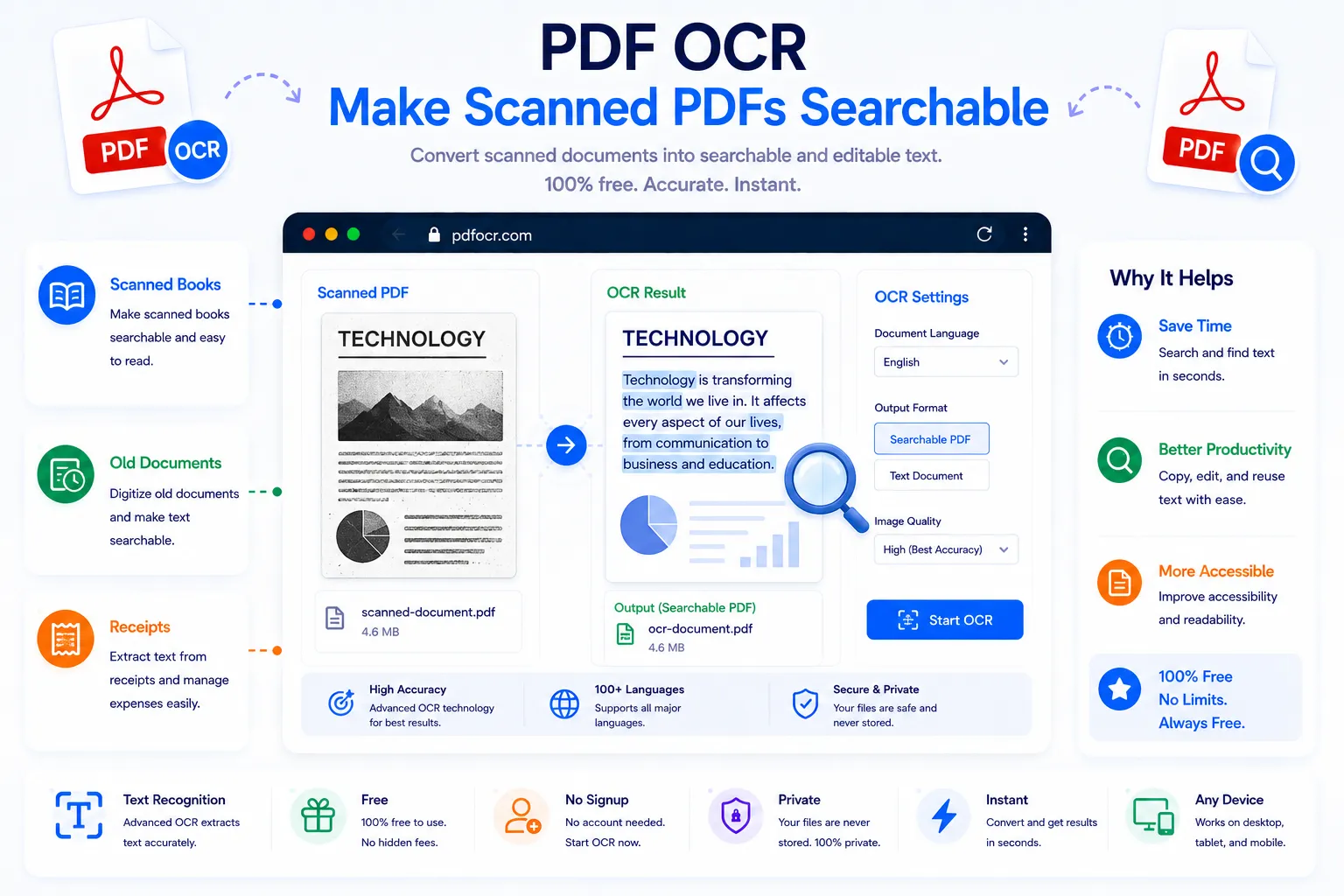
A scanned PDF is really just a picture of a document, not the document itself. You can look at it, but you can't search it, select a line to copy, or highlight a phrase, because to a computer it's nothing but pixels. OCR (Optical Character Recognition) fixes that by reading the text in the image and layering it invisibly on top of the scan, turning a flat picture into a file you can search, copy from, and edit like any other PDF.
This guide covers what OCR actually changes about a scanned PDF, what affects the accuracy of the result, and how to run OCR for free using NexaTools.
What OCR Actually Does to a Scanned PDF
Running OCR doesn't redraw or replace the scanned page, it reads the shapes of the letters in the image and adds a matching text layer underneath, invisible to the eye but fully recognized by the computer. The page still looks identical to the original scan, but now a search for a keyword can find it, a paragraph can be selected and copied, and screen readers can read the content aloud. It's the difference between a document you can only look at and one you can actually work with.
Step-by-Step: Run OCR on a PDF with NexaTools
- Open the NexaTools PDF OCR tool
- Upload the scanned PDF you want to convert
- Let the tool recognize the text on each page
- Download the searchable, selectable PDF
Common Mistakes When OCR-ing a PDF
- Scanning at too low a resolution small or blurry text is much harder for OCR to recognize accurately, aim for at least 300 DPI
- Ignoring skewed or rotated pages even a slight tilt can throw off character recognition line by line
- Expecting perfect results from handwriting OCR is built for printed text, handwritten notes are far less reliable to recognize
- Not proofreading the result OCR is highly accurate but not flawless, a quick check catches misread characters before the file is shared
Who Needs PDF OCR
- Students and researchers digitizing textbooks, articles, or old papers
- Offices converting scanned contracts, forms, and archives into searchable records
- Legal and admin teams needing to search across large volumes of scanned documents
- Anyone who scanned a document and now needs to copy text out of it
🔎 Make Your Scanned PDF Searchable Free
No signup, no limits. Upload your scanned PDF and run OCR instantly.
⚡ Open PDF OCR Tool