SVG to PNG Converter: Free Online Vector Image Tool
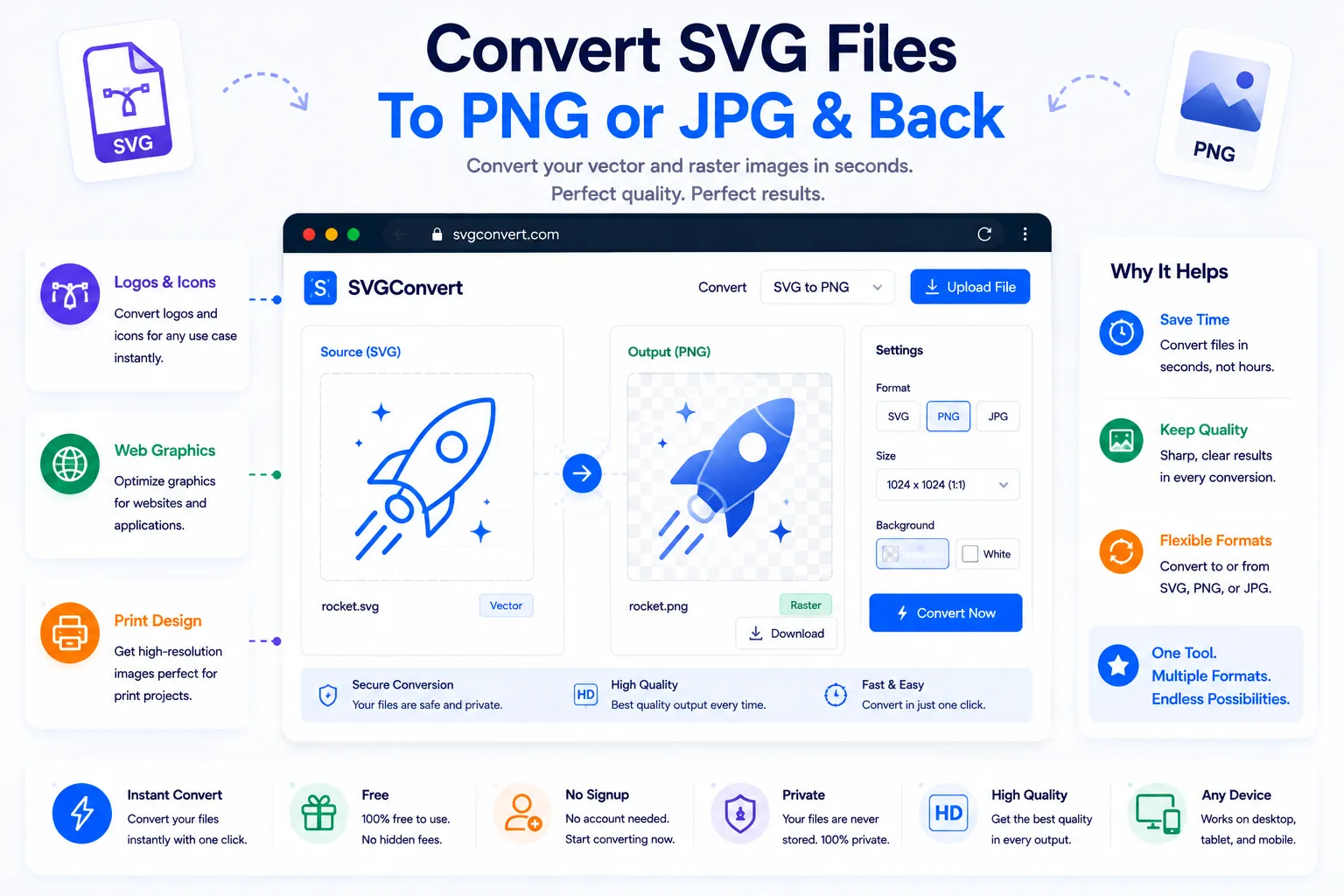
SVG files are everywhere in web design and branding, but they don't always play nicely outside a browser. A logo that renders perfectly on a website can suddenly refuse to open in a photo editor, a presentation deck, or an old image viewer. That's because SVG isn't a picture made of pixels, it's a set of drawing instructions written in code, and plenty of software simply doesn't know how to read it.
This guide explains what makes SVG different, why converting it to PNG or JPG solves most of these headaches, and how to do it for free using NexaTools.
What Makes SVG Different From PNG or JPG
PNG and JPG are raster formats: they store an image as a fixed grid of colored pixels, so zooming in far enough eventually reveals blur or blocky edges. SVG is a vector format: it stores shapes as mathematical paths described in XML markup, which means it can scale to any size, from a favicon to a billboard, without ever losing sharpness. That flexibility is exactly why SVG is popular for logos and icons, but it's also why raster-only software can't display it directly.
Step-by-Step: Convert SVG to PNG with NexaTools
- Open the NexaTools SVG Converter
- Upload the SVG file you want to convert
- Choose PNG or JPG as the output format and set the size
- Download the converted raster image
Common Mistakes When Converting SVG Files
- Exporting at too low a resolution a small PNG output can look blurry once placed into a larger layout, even though the source SVG was perfectly sharp
- Choosing JPG for a transparent logo JPG has no transparency support, so a logo meant for a colored background will end up with a white or black box around it
- Converting a corrupted or incomplete SVG missing fonts or unsupported effects in the original file can carry over as rendering errors in the output
- Re-converting from a raster copy starting from an already-converted PNG instead of the original SVG bakes in resolution limits that don't need to exist
Who Needs an SVG Converter
- Designers exporting logos for platforms that don't accept vector uploads
- Marketers preparing graphics for email or presentation software
- Developers generating raster fallbacks for older browsers
- Online sellers converting icon sets for marketplace listings
🖼️ Convert Your SVG Free
No signup, no limits. Upload your vector file and convert it instantly.
⚡ Open SVG Converter